Redaction
ElevateAI's Redaction feature automatically detects and replaces personally identifiable information in transcripts — helping you meet compliance requirements and protect customer data at scale.
Redaction is configured per token and requires user opt-in. To get started, navigate to the Manage Tokens page and click the Redactions button to select which entity types to redact and whether redaction should apply to Post Call, Real Time, or both.
How It Works
When redaction is enabled for a token, ElevateAI scans each transcript for the entity types you have selected. Detected PII is replaced with a placeholder in the format <ENTITY_TYPE> before the transcript is stored or returned.
Example:
Details on each redacted segment — including timing, entity type, and confidence score — are returned alongside the transcript in the redactionSegments array.
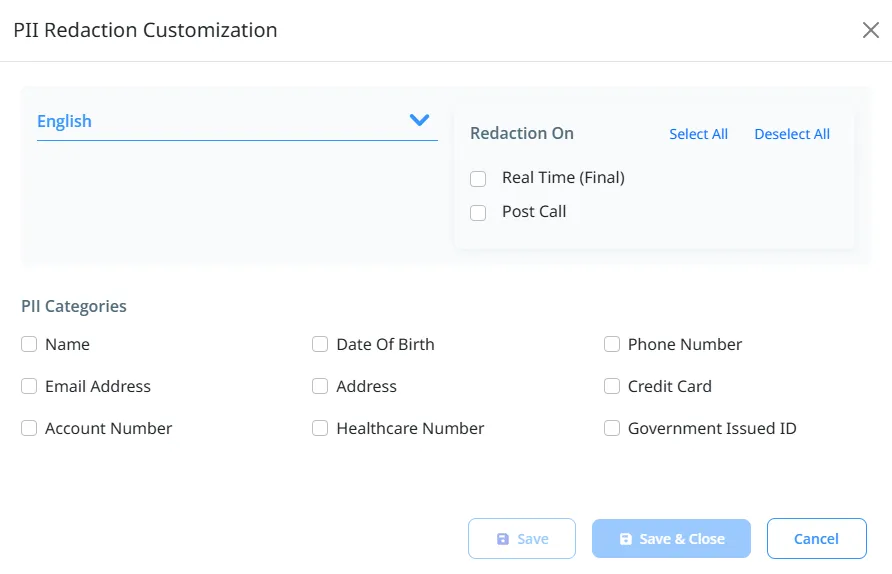
UI for editing Redaction Options
Configuring Redaction
Redaction settings are managed at the token level from the Manage Tokens page.
Setting | Description |
|---|---|
Entity Types | Select the PII categories to detect and redact. A full list of supported entities is provided below. |
Post Call | Apply redaction to transcripts processed via the ElevateAI Post Call API. |
Real Time | Apply redaction to transcripts streamed via the ElevateAI Real-Time API (WSS). Redaction is only on the final transcript |
Post Call API
For interactions declared and processed through the ElevateAI Post Call API, redaction is applied automatically when it is enabled for the token used to declare the interaction.
When retrieving a phrase-by-phrase or punctuated transcript for a redacted interaction, the response will include a redactionSegments array containing details on each detected PII instance.
Sample Response — redactionSegments
{
  "redactionSegments": [
    {
      "startTimeOffset": 1467720,
      "endTimeOffset": 1468030,
      "result": "US_SSN",
      "score": 0.98745
    },
    {
      "startTimeOffset": 2031100,
      "endTimeOffset": 2031850,
      "result": "PHONE_NUMBER",
      "score": 0.95312
    }
  ]
}
redactionSegments Fields
Field | Type | Description |
|---|---|---|
startTimeOffset | integer | Start time of the redacted segment in milliseconds. |
endTimeOffset | integer | End time of the redacted segment in milliseconds. |
result | string | The entity type that was detected and redacted (e.g., "US_SSN", "PHONE_NUMBER"). |
score | number | Confidence score for the detection, from 0.0 to 1.0. |
Real-Time API (WSS)
For sessions processed through the ElevateAI Real-Time API, redaction is applied based on the configuration set for the token on the Manage Tokens page.
Final Transcript Redaction — Redacts PII in the completed transcript returned at the close of a session.
Supported Entity Types
NLP-Based Entities
Detected using natural language processing. Available for English and Spanish only.
Entity Type | Description |
|---|---|
NAME | Names of individuals |
ADDRESS | US Addresses |
Global Entities
Detected using pattern matching. Available for all supported languages.
Entity Type | Description |
|---|---|
DATE_OF_BIRTH | Date of Birth |
CREDIT_CARD | Credit card numbers (Visa, Mastercard, Amex, and others) |
EMAIL_ADDRESS | Email addresses |
HEALTHCARE_NUMBER | Medical license numbers |
PHONE_NUMBER | Phone numbers in various formats |
GOVERMENT_ISSUES_ID | Social Security Numbers, Drivers License numbers, US Passport numbers |
ACCOUNT_NUMBER | US bank account numbers |
Language Support
ElevateAI Redaction supports 2 languages:
Language Code | Language | NLP Entities | Regional Entities |
|---|---|---|---|
en, en-US | English | Yes | US, UK |
es, es-419 | Spanish | Yes | ES |
// Using Redaction
1. Manage at the API Token Level
- Redaction configuration options are attached to specific API tokens, allowing token-level customization
- For example, your Customer Support token might include different substitutions than your Sales token
2. Access the Phrase Editor
- Log into the ElevateAI Portal <app.elevateai.com>
- Your security level within your account determines your access to the Boosted Phrases list
Access Level by Role:
Role | Access Level |
|---|---|
Owner | Full Access (View, Edit, Create) |
Admin | Full Access (View, Edit, Create) |
API User | View Only Access |
Explore | No Access |
- Navigate to Manage API Tokens
- Locate the desired token and select Edit Redaction to open the PII Redaction Configuration
- Only account Owners or Admin can edit a Find & Replace pair.
3. Select a Language
- Choose the language you wish to edit from the dropdown
- Each API token supports one Redaction configuration per language
4. Select Redaction Configuration
- Select to turn redaction on for Either Real Time(Final) or Post call, or both.
- Select which entities to enable redaction on. You can use select all to select all.
5. Disabling Redaction
- To transcribe without redaction, use a token that does not have an redaction enabled.
- To remove the redaction feature completely, edit the configuration to disable all redaction elements.
Need More Help?
Need more help? Contact the ElevateAI Support Team.